
Settings reference
A tour of every Settings tab in Querly: General, Appearance, Editor, Safety, Shortcuts, Toolbar, Integrations, and AI Assist.
Open Settings with ⌘,. The window has a search box at the top. Type a word such as "font" or "timeout" and Querly shows the matching option and the tab it lives in. Changes apply immediately.
You never have to change anything here to use Querly. The defaults suit most people. Come back when something bothers you.
General
Startup
- Reopen last connection on launch. When off, Querly opens the start screen.
- Restore previously open tables. When off, a connection starts with a blank query tab.
- Confirm before quitting Querly. Asks first so you do not quit by accident.
Tabs
- Allow more than one tab per table. When off, opening a table again reuses its tab.
⌥-click and Open in New Tab always open a new one. - Close unused tabs after. Closes idle tabs after the time you choose. It never closes the current tab, tabs with unsaved work, or tabs running a query.
Data
- Rows per page. How many fetched rows the grid shows at a time.
- Auto-LIMIT. Adds a
LIMITto SELECT queries that do not have one, so a careless query cannot pull a huge table. The hard row limit under Safety still applies. - Opens tables newest-first. Sorts by the primary key, descending.
- Auto-refresh table on window focus. Reloads the table when you return to Querly.
- Remember table filters after quitting. Bookmarked (saved) filters are always kept.
- ⌘C row format. What
⌘Ccopies when rows are selected: TSV, CSV, INSERT statements, or JSON.
Updates
Querly checks for new versions automatically and installs them in the background. Click Check Now… to look right away. When an update is found, an "Update available" badge appears in the top bar.
Appearance
- Theme. Sets editor colours and the app accent colour.
- App font size and the grid's Font size.
- Row height. Compact (20 pt), Default (24 pt), Comfortable (28 pt), Spacious (32 pt), or Extra spacious (36 pt).
- Show NULL as. How empty values look in the grid, so NULL is easy to tell from an empty text.
- Alternate row colors and Show row numbers.
- Wrap long values. Long text wraps instead of being cut off. Row height stays fixed.
- Use the classic grid. A fallback for rendering problems. The default grid scrolls faster and uses less memory.
- Status bar. Choose what the connection pill spells out. The environment badge, such as PRODUCTION, always shows.
Editor
- Tab size, Cursor style, and Bracket match highlight.
- Auto-close brackets and quotes.
- ⌘↩ runs the current statement only. Turn it off to run the whole script instead.
- Keep unsaved query drafts across launches. Your unfinished SQL survives a quit.
- Code folding. Fold statements from the gutter. Your SQL is hidden, never changed.
- Identifier quoting. Used when Querly writes SQL for you, such as INSERT templates and bulk edits. Choose Auto (per engine), always
"double quotes", or alwaysbackticks.
Safety
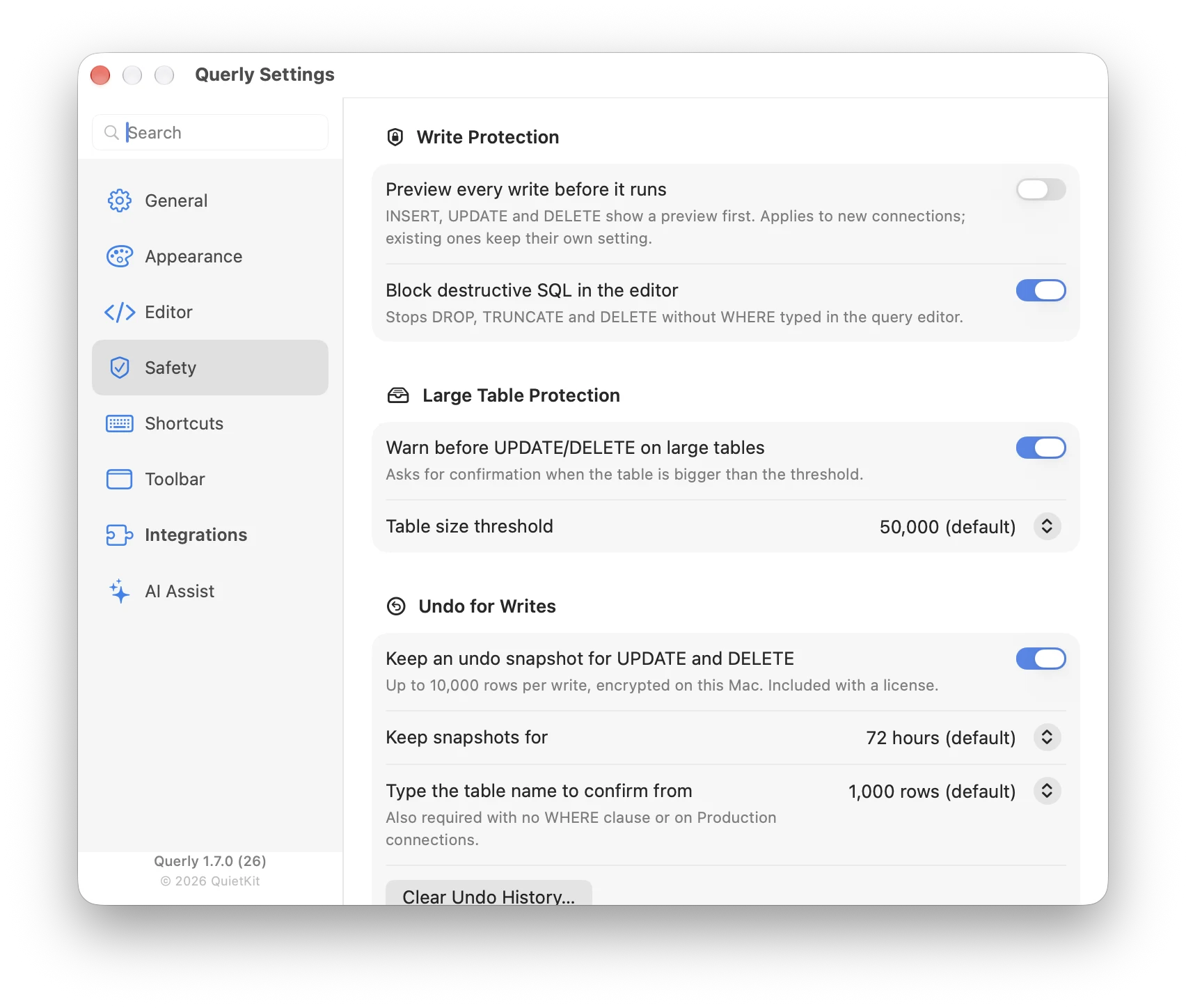
These options protect your data. See Safe Mode and Review and undo writes for how they behave.
Write protection
- Preview every write before it runs. INSERT, UPDATE, and DELETE show a preview first. This sets the default for new connections. Existing connections keep their own setting.
- Block destructive SQL in the editor. Stops
DROP,TRUNCATE, andDELETEwithoutWHEREtyped in the query editor.
Large table protection
- Warn before UPDATE/DELETE on large tables. Asks for confirmation when the table is bigger than the threshold you choose. The default threshold is 50,000 rows.
Undo for writes
- Keep an undo snapshot for UPDATE and DELETE. Encrypted on your Mac. Included with a licence.
- Keep snapshots for. 24 hours, 72 hours (the default), or 7 days.
- Type the table name to confirm from. A row count above which you must type the table name. The default is 1,000 rows. This is also required with no
WHEREclause or on Production connections. - Clear Undo History. Deletes all snapshots at once. Writes you already ran can no longer be undone.
Query limits
- Query timeout. Cancels queries that run longer than this. The default is 1 minute.
- Hard row limit. The most rows one query can load into memory, even with "No limit". The default is 200,000.
Shortcuts
Search for a command, click its shortcut, and press the new keys. Esc cancels. Conflicts are shown before the change is accepted. Pick a preset at the top, or reset one command or all of them. See Keyboard shortcuts.
Toolbar
Choose how the top toolbar displays its buttons, click Customize… to choose which items are visible and in what order, show every icon again, or Reset Toolbar to Defaults….
Integrations
- Connect an AI agent. See Connect an AI agent.
- Install for Terminal. Makes
querly-cliavailable in your terminal. - Show audit log. Opens the record of what AI agents ran.
- Copy diagnostics. Copies a privacy-safe report for support.
- Forget trusted Laravel projects. Querly asks permission once per project before running
artisan. This clears those answers.
AI Assist
Optional and off by default. Bring your own key. Nothing is sent until you use an AI feature, and then only your schema and the current SQL. Your key is stored in the macOS Keychain.
- Provider. Anthropic, OpenAI, Google, OpenRouter, DeepSeek, xAI Grok, Ollama, or any OpenAI-compatible service.
- Test Connection checks the key and Save keeps it.
With AI Assist on, you can write SQL from plain English (click ✦ in the query editor and describe what you need), ask why a query failed and how to fix it, and get index suggestions from the Index Advisor.