
Your first 10 minutes
Open the sample database, browse a table, run a query, edit safely, and turn on Safe Mode. Nothing to set up first.
This walk-through uses the sample database that comes with Querly, so you cannot damage anything. Total time: about ten minutes. New to the words used here? Read Database basics first.
1. Install and open Querly
Follow Installation. The first launch shows a short welcome tour.
2. Choose "Try without connecting"
On the Welcome screen, pick Try without connecting. Querly opens a bundled sample SQLite database.
3. Open a table
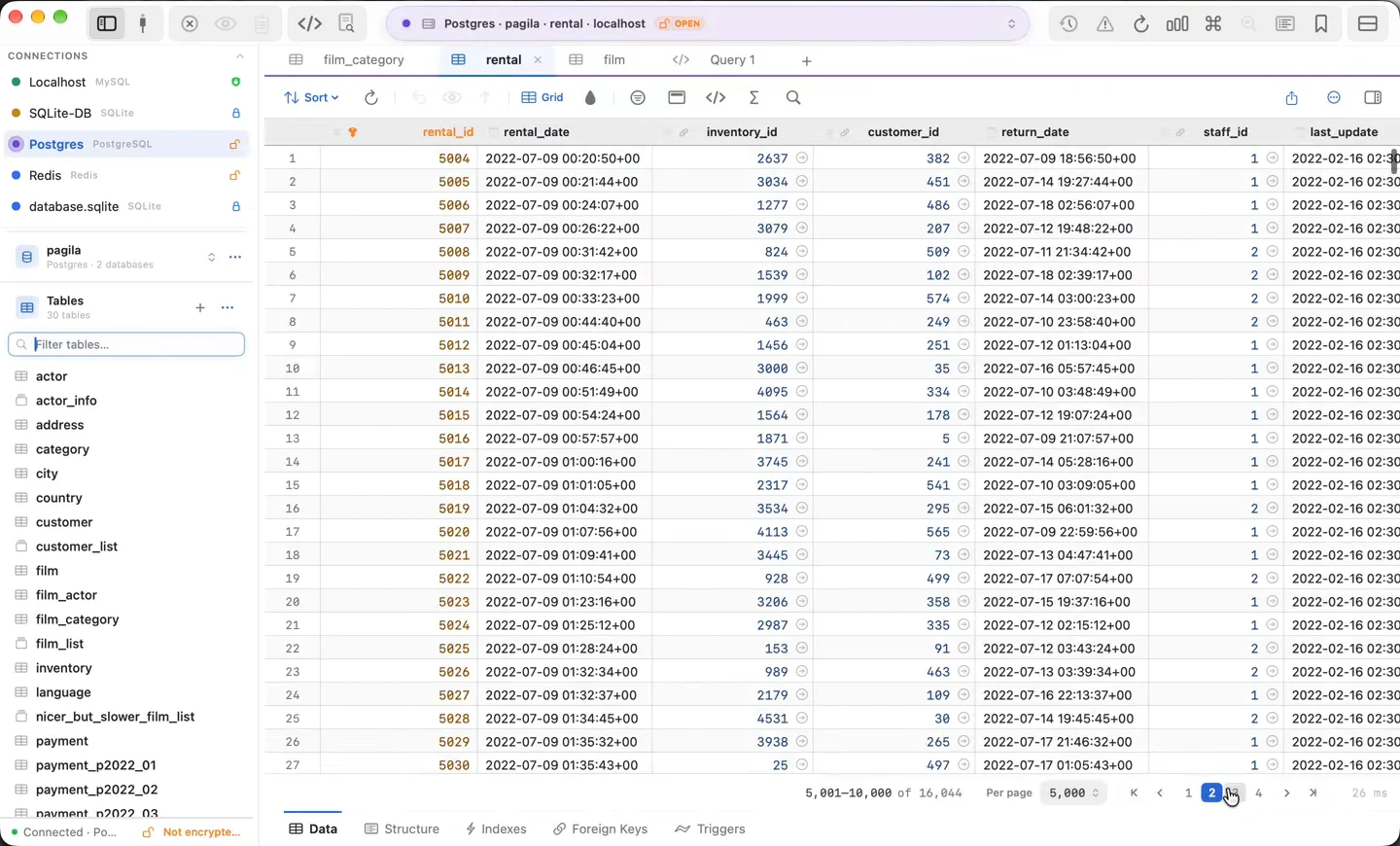
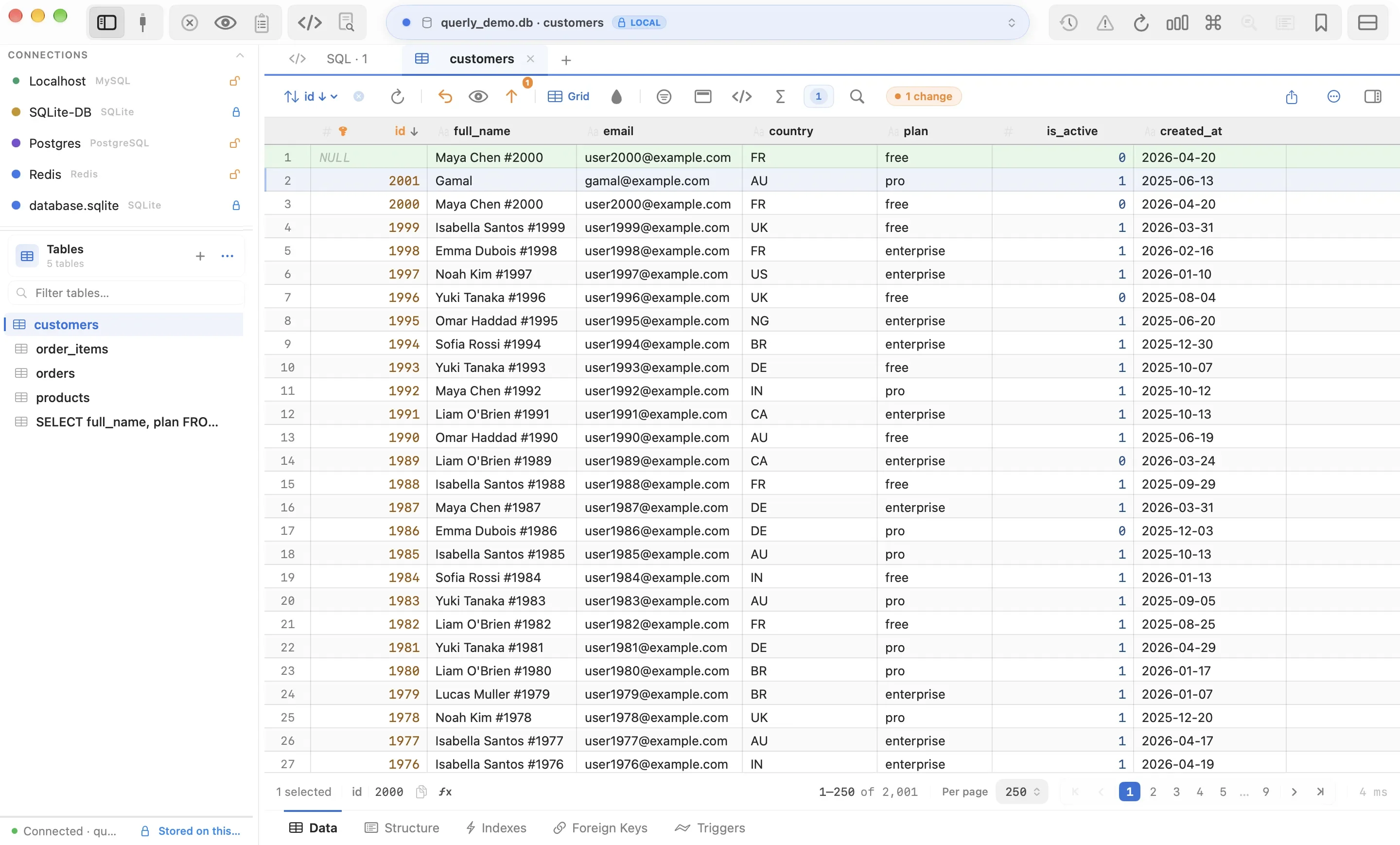
Press ⌘K, type a few letters of a table name, and press Return. The table opens as a grid. Press Space on a selected row to read it in full.
4. Run your first query
Press ⌘T for a new query tab. Type SELECT * FROM, then pick a table from the suggestions. Press ⌘↩ to run it. The answer appears below the editor.
5. Change a value, then save it
Go back to a table and double-click a cell. Type a new value and press Return. The row turns orange and a pending-change counter appears. Nothing is saved yet. Press ⌘S to review and save, or discard the change.
6. Turn on Safe Mode
Click the lock in the toolbar. From now on every change shows its exact SQL before it runs.
7. Add your own database
Press ⌘N, choose your engine, fill in the details, and click Test. Read Create a connection for each field.
A small getting-started bar follows your first steps and completes itself as you use the app. You can ignore it.
If you get stuck
- Press
⌘Pand type what you want to do. The command palette finds any action. - Read Troubleshooting for connection and query problems.
- Read the FAQ for quick answers.